Difference between revisions of "IVS Wiki:VALT Permissions - Specifiactions"
IVSWikiBlue (talk | contribs) |
IVSWikiBlue (talk | contribs) |
||
| Line 94: | Line 94: | ||
This section of the software is used to view live sessions and create recordings. | This section of the software is used to view live sessions and create recordings. | ||
| − | {{Section | title = Sample of Observe Rights | content = | + | {{Section | title = Sample of Observe Rights {{Float | content = {{img - icon | file = Observe.png | width = 18px}} }} | content = |
{{Level 1 Custom | icon = {{Checkbox - VALT}} | name = <strong>Recording</strong> | text = These settings are used in the Observe section of the software. To start a recording a user must also have access to the live observation}} | {{Level 1 Custom | icon = {{Checkbox - VALT}} | name = <strong>Recording</strong> | text = These settings are used in the Observe section of the software. To start a recording a user must also have access to the live observation}} | ||
{{Level 2 Custom | icon = {{Checkbox - VALT}} | name = <strong>Start</strong> | text = Grants the ability to start recordingings}} | {{Level 2 Custom | icon = {{Checkbox - VALT}} | name = <strong>Start</strong> | text = Grants the ability to start recordingings}} | ||
| Line 116: | Line 116: | ||
</dl> | </dl> | ||
| − | {{Section | title = Sample of | + | {{Section | title = Sample of Review Rights {{Float | content = {{img - icon | file = Review.png | width = 18px}} }} | content = |
{{Level 1 Custom | icon = {{Checkbox - VALT Partial}} | name = <strong>Main Thing</strong> | text = Grants access to the this main thing}} | {{Level 1 Custom | icon = {{Checkbox - VALT Partial}} | name = <strong>Main Thing</strong> | text = Grants access to the this main thing}} | ||
{{Level 2 Custom | icon = {{Checkbox - VALT}} | name = <strong>Cool Feature</strong> | text = Grants user access to a cool feature}} | {{Level 2 Custom | icon = {{Checkbox - VALT}} | name = <strong>Cool Feature</strong> | text = Grants user access to a cool feature}} | ||
| Line 151: | Line 151: | ||
</dl> | </dl> | ||
| − | {{Section | title = Sample of | + | {{Section | title = Sample of Schedule Rights {{Float | content = {{img - icon | file = Schedule.png | width = 18px}} }}| content = |
{{Level 1 Custom | icon = {{Checkbox - VALT Empty}} | name = <strong>Main Thing</strong> | text = Grants access to the this main thing}} | {{Level 1 Custom | icon = {{Checkbox - VALT Empty}} | name = <strong>Main Thing</strong> | text = Grants access to the this main thing}} | ||
{{Level 2 Custom | icon = {{Checkbox - VALT Empty}} | name = <strong>Cool Feature</strong> | text = Grants user access to a cool feature}} | {{Level 2 Custom | icon = {{Checkbox - VALT Empty}} | name = <strong>Cool Feature</strong> | text = Grants user access to a cool feature}} | ||
| Line 168: | Line 168: | ||
</dl> | </dl> | ||
| − | {{Section | title = Sample of | + | {{Section | title = Sample of Reports Rights {{Float | content = {{img - icon | file = Reports.png | width = 18px}} }}| content = |
{{Level 1 Custom | icon = {{Checkbox - VALT Partial}} | name = <strong>Main Thing</strong> | text = Grants access to the this main thing}} | {{Level 1 Custom | icon = {{Checkbox - VALT Partial}} | name = <strong>Main Thing</strong> | text = Grants access to the this main thing}} | ||
{{Level 2 Custom | icon = {{Checkbox - VALT Partial}} | name = <strong>Cool Feature</strong> | text = Grants user access to a cool feature}} | {{Level 2 Custom | icon = {{Checkbox - VALT Partial}} | name = <strong>Cool Feature</strong> | text = Grants user access to a cool feature}} | ||
| Line 185: | Line 185: | ||
</dl> | </dl> | ||
| − | {{Section | title = Sample of | + | {{Section | title = Sample of Settings Rights {{Float | content = {{img - icon | file = VALT_Settings.png | width = 18px}} }} | content = |
{{Level 1 Custom | icon = {{Checkbox - VALT}} | name = <strong>Main Thing</strong> | text = Grants access to the this main thing}} | {{Level 1 Custom | icon = {{Checkbox - VALT}} | name = <strong>Main Thing</strong> | text = Grants access to the this main thing}} | ||
{{Level 2 Custom | icon = {{Checkbox - VALT}} | name = <strong>Cool Feature</strong> | text = Grants user access to a cool feature}} | {{Level 2 Custom | icon = {{Checkbox - VALT}} | name = <strong>Cool Feature</strong> | text = Grants user access to a cool feature}} | ||
Revision as of 12:28, 24 February 2026
Access Control


The VALT Software is compromised of 6 main sections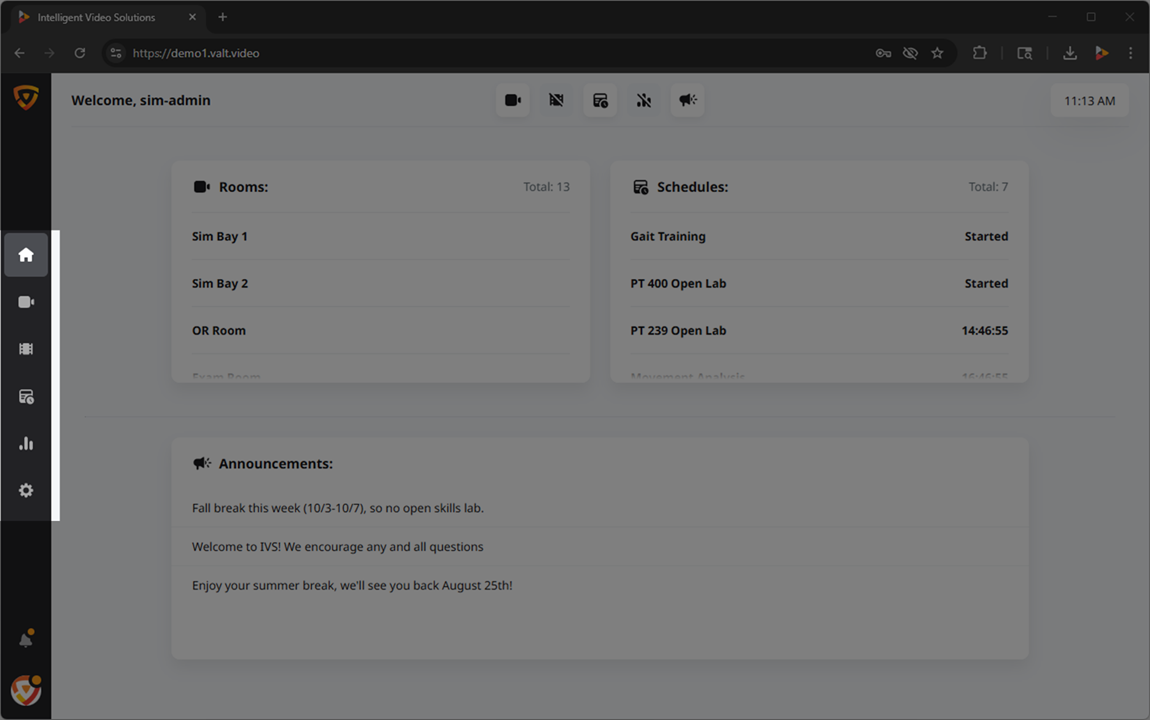 🖼️.
🖼️.
Access to these sections, and their associated features, can be controlled at two distinct levels within the software: the group level and the user level.
Role Management
User Groups
At the core of our permission structure, the majority of access is defined at the group level. By establishing permission settings at this level, you can streamline management and ensure consistent access controls for users within the same group.
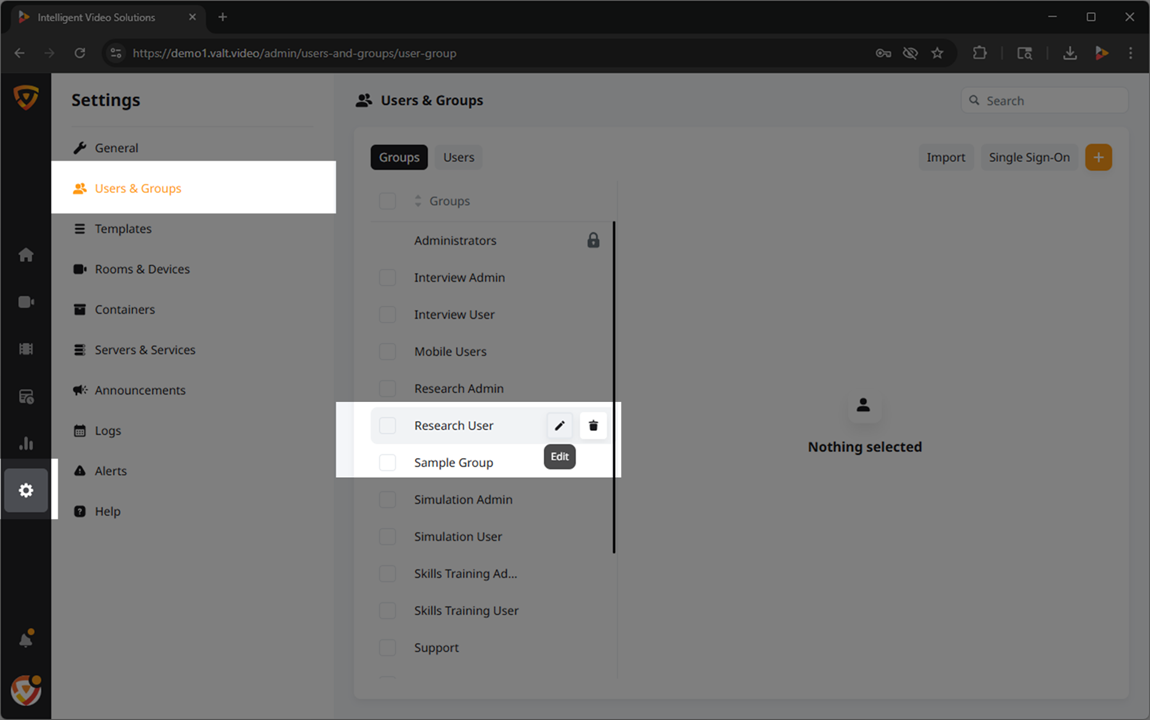
Users
Rights defined at the group level are automatically inherited by the individual users assigned to those groups, simplifying the administration of rights.
In addition to the group-level rights, our software allows for further customization at the individual user level. This means that specific access rights can be fine-tuned to cater to unique requirements, providing an extra layer of control over user privileges.
Rights
How They're Applied
- Group-Level
- Here are lists of the rights
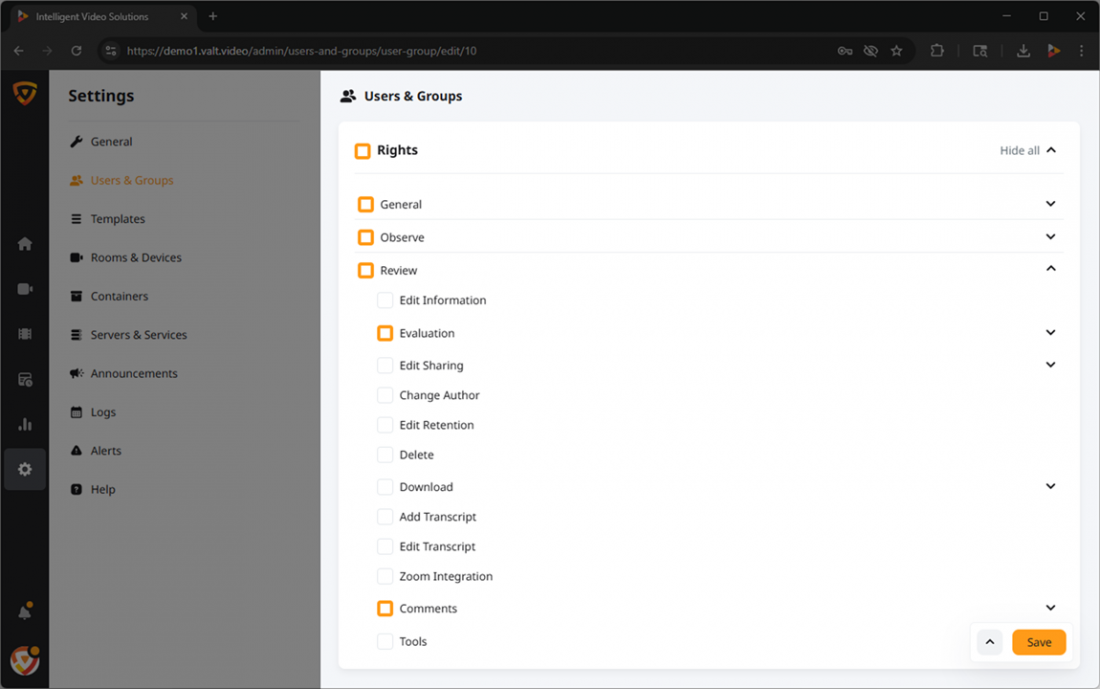 🖼️ within VALT and the corresponding access they grant. The chart below illustrates whether each permission can be configured at the group level, user level, or both.
 - User-Level Override
- While permissions are primarily configured at the group-level, additional permissions can be granted at the user-level.
✎Permissions can only be granted at this level. Permissions are revoked at the group-level.
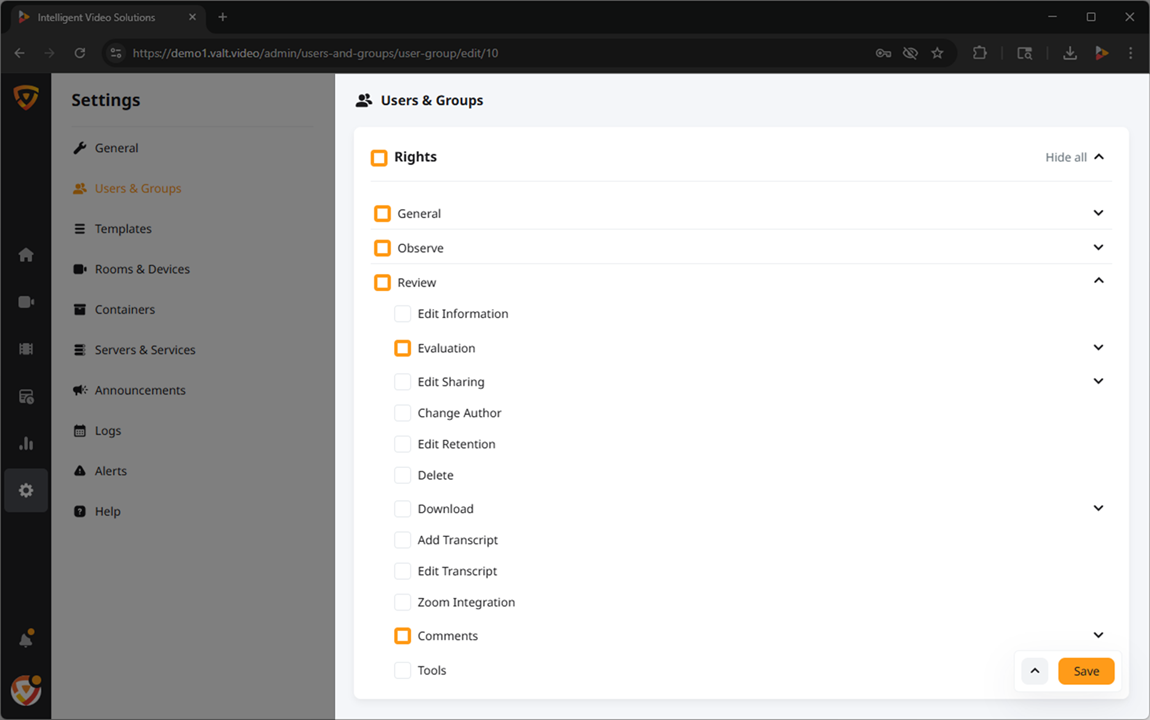
Available Rights
- General
-
Grants access to the features within the General section.
🕮This section applies to buttons or notifications that are system wide.
- Observe
-
This section of the software is used to view live sessions and create recordings.
Sample of Observe Rights

- Review
- This section of the software is used to view previously recorded sessions, update metadata, download, and delete existing videos.

- Upload
- Allows users to upload videos to the VALT software. Files must be MP4 or MOV.
- Schedule
- This section of the software is used to schedule recordings that will take place on a specific date, at a specific time, and will last for a fixed duration.

- Reports
- Allows users to generate simple statistical reports about usage of the VALT system.

- Settings
- Grants the ability for a user to view general system statistics including software version, licenses, and storage amount.

