Difference between revisions of "VALT Room Controls"
IVSWikiBlue (talk | contribs) |
IVSWikiBlue (talk | contribs) |
||
| (7 intermediate revisions by the same user not shown) | |||
| Line 1: | Line 1: | ||
{{Article - Manual | content = | {{Article - Manual | content = | ||
| − | + | {{Aside - Helpful | content = Looking for sales information or resources? [https://www.ipivs.com/products/valt-room-controls#privacyswitch Click here!]}} | |
| + | |||
<h1>VALT Room Controls</h1> | <h1>VALT Room Controls</h1> | ||
| + | Intelligent Video Solutions has developed a line of custom-built room controls for the VALT platform. Each of the products below have been architected by our development team to leverage the power of the network through the VALT API. These physical interfaces and displays can streamline workflows, solve business problems or enhance security and compliance. | ||
| + | |||
| + | {{hr}} | ||
| + | |||
| + | {{Float | content = [[VALT Record Button | Go to VALT Record Button]] }} | ||
<h2>VALT Record Button</h2> | <h2>VALT Record Button</h2> | ||
{{:VALT Record Button}} | {{:VALT Record Button}} | ||
| − | |||
| − | |||
{{Top of Page}} | {{Top of Page}} | ||
{{hr}} | {{hr}} | ||
| + | {{Float | content = [[VALT Card Reader | Go to VALT Card Reader]] }} | ||
<h2>VALT Card Reader</h2> | <h2>VALT Card Reader</h2> | ||
{{:VALT Card Reader}} | {{:VALT Card Reader}} | ||
| − | |||
{{Top of Page}} | {{Top of Page}} | ||
{{hr}} | {{hr}} | ||
| + | {{Float | content = [[VALT Privacy Button | Go to VALT Privacy Button]] }} | ||
<h2>VALT Privacy Button</h2> | <h2>VALT Privacy Button</h2> | ||
{{Flexbox | left = | {{Flexbox | left = | ||
| Line 26: | Line 31: | ||
*[[VALT Privacy Button|More Information]] | *[[VALT Privacy Button|More Information]] | ||
|right = | |right = | ||
| − | {{img - | + | {{img - no click | file = Privacy Button On.png | width=240px}} |
}} | }} | ||
| − | |||
{{Top of Page}} | {{Top of Page}} | ||
{{hr}} | {{hr}} | ||
| + | {{Float | content = [[VALT Keypad | Go to VALT Keypad]] }} | ||
<h2>VALT Keypad</h2> | <h2>VALT Keypad</h2> | ||
{{:VALT Keypad}} | {{:VALT Keypad}} | ||
| − | |||
| − | |||
{{Top of Page}} | {{Top of Page}} | ||
{{hr}} | {{hr}} | ||
| + | {{Float | content = [[VALT Digital Display | Go to VALT Digital Display]] }} | ||
<h2>VALT Digital Display</h2> | <h2>VALT Digital Display</h2> | ||
{{:VALT Digital Display}} | {{:VALT Digital Display}} | ||
| − | |||
{{Top of Page}} | {{Top of Page}} | ||
}} | }} | ||
Latest revision as of 10:19, 24 February 2026
VALT Room Controls
Intelligent Video Solutions has developed a line of custom-built room controls for the VALT platform. Each of the products below have been architected by our development team to leverage the power of the network through the VALT API. These physical interfaces and displays can streamline workflows, solve business problems or enhance security and compliance.
VALT Record Button
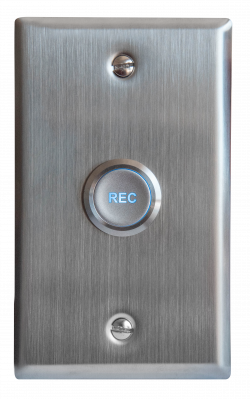
The VALT Record Button is a simple way to start a recording in or near the room. Simply push the button to start a recording and then push it again to stop the recording.
VALT Card Reader

The VALT Card Reader is another simple way to start a recording but unlike the VALT Record Button it has the ability to tie who has started the recording to the video and assign access rights accordingly. Simply swipe a badge to start a recording and then swipe it again to stop the recording.
VALT Privacy Button
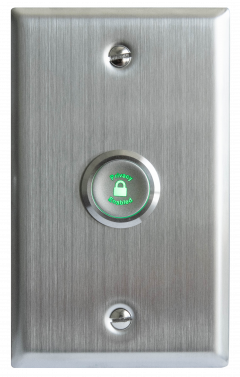
The VALT Privacy Button provides users with a local way to prevent video and audio observation into a session. When this is desired, we can configure cameras for Privacy Mode, which blankets the screen with a black video overlay and omits all audio from the stream.
VALT Keypad
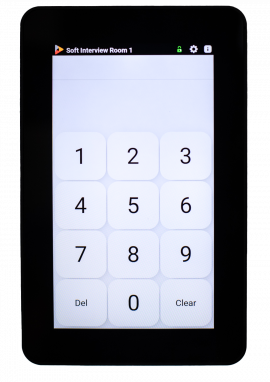
The VALT Keypad is mounted inside or outside a room. Users enter a unique pin code that identifies them as the author of the recording and who the recording is shared with. Use the keypad to start, stop and pause recording. And add time-stamped markers to an active video recording, so you can jump to key moments in video playback.
Benefits:
- User autonomy to start and stop recording.
- Manage recording at the room.
- Distribute video based on author permissions.
- Add markers with one press of a digital button.
VALT Digital Display
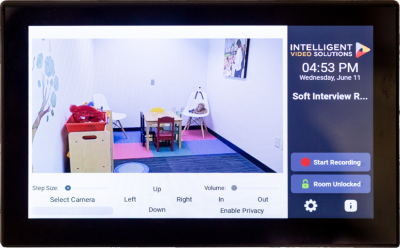
The VALT Digital Display provides a live camera view and pan-tilt-zoom camera control via touchscreen. Use the digital display to start, stop and pause recording. And add time-stamped markers to an active video recording, so you can jump to key moments in video playback.
Benefits
- User autonomy to start and stop recording.
- Manage recording at the room.
- Add markers with one press of a digital button.
